






Configure routing for a cloud instance on multiple networks
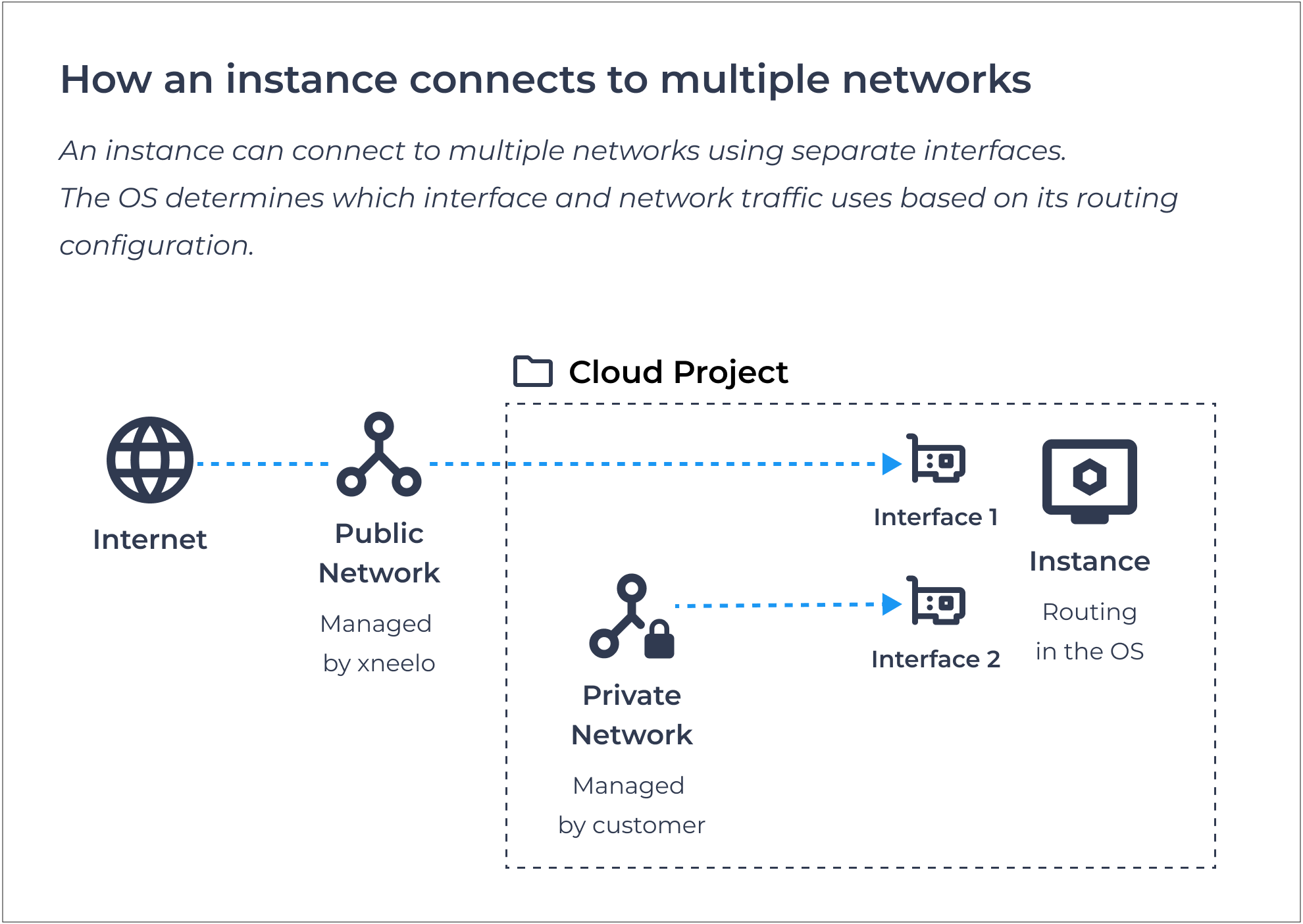
When you connect an instance to more than one network, the instance uses a separate interface for each network.
Depending on your operating system and network setup, additional routing configuration may be required to ensure traffic uses the intended network.
How the operating system uses the available interfaces and routes traffic is configured inside the instance.
-
How multiple networks work
Each network connected to an instance uses its own network interface.
For example, an instance could be connected to:
- A public network for internet access.
- A private network for communication with other Cloud resources.
Each interface has its own network configuration, such as an IP address and subnet.
-
Default routes and gateways
An operating system normally uses a default route when traffic does not match a more specific route.
When an instance is connected to multiple networks, more than one interface may have gateway or routing information available. The operating system determines which route traffic uses.
This can cause traffic to leave through a different interface than expected.
You may need to configure routing inside the operating system to ensure traffic uses the intended network.
Note: A router controls connectivity between networks in your Cloud project. Routing inside the instance determines how that instance sends traffic through its available interfaces.
Tip: Avoid configuring multiple default routes unless your network design specifically requires them. Multiple default routes can cause traffic to use the wrong interface or result in connectivity problems
-
Connect an instance to multiple networks
You can connect an instance to multiple networks in two ways:
- Select multiple networks when creating the instance. A separate interface is created for each selected network.
- Attach an additional interface to an existing instance to connect it to another network.
After connecting the instance to multiple networks, there are two areas to check inside the operating system:
- Interface configuration: Confirm that each interface is detected and configured correctly.
- Routing configuration: Confirm that traffic uses the intended interface and network.
-
Configure interfaces in the operating system
Depending on the operating system, image and how the interface was added, you may need to confirm that each interface is detected and configured correctly.
Follow the steps in Interfaces on cloud instances.
-
Configure routing in the operating system
The exact networking and routing configuration depends on the operating system, image and network setup.
Depending on your network design, you may need to configure:
- A default gateway.
- Static routes for specific networks or destinations.
- Route priorities or metrics.
- Which interface should be used for particular traffic.
Configuration inside the instance operating system is managed by you and falls outside our scope of support.
For help with operating system networking:
- Refer to the networking documentation for your operating system.
- Use Ask AI in the Cloud dashboard for guidance with common Linux networking and routing tasks.
-
Troubleshoot routing on multiple networks
If traffic is not using the expected network, first check:
- The expected interfaces are available inside the operating system.
- Each interface has the expected IP configuration.
- The operating system routing table uses the intended route.
Also confirm that:
- The instance is connected to the correct networks.
- Security group rules allow the required traffic.
- Any required router or private network configuration is in place.
- The operating system firewall allows the required traffic.