



Unified Extensible Firmware Interface (UEFI)

What is Unified Extensible Firmware Interface (UEFI)?

UEFI (Unified Extensible Firmware Interface) is an industry-standard interface between a server’s platform firmware and operating system. It replaces the older Legacy BIOS (Basic Input/Output System) and defines a modern method for system initialisation and OS boot.

UEFI provides a standardised set of services and data structures related to the platform, boot process, and runtime environment. These are accessible to operating systems and their bootloaders, enabling consistent and reliable system startup. In addition to loading the OS, UEFI can also run pre-boot applications and utilities (such as diagnostics or firmware updaters), making it far more versatile than legacy BIOS.

UEFI benefits:

  • Modern, versatile and flexible pre-boot environment.
  • Support for large disks >2 TB in size, enabled by the GUID Partition Table (GPT) standard.

Which servers are UEFI compatible?

All of our current Self-Managed Servers support UEFI boot. The sole exception is for servers using the Supermicro X10SLM-F motherboard (found in certain TruServ and TruServ 1230 models), which have a known limitation with UEFI Network/PXE booting and may require Legacy (BIOS) boot mode for reliable provisioning.

Important: The instructions and commands provided in this guide can affect your server environment. Please review and understand each step, and proceed only if you’re confident in the impact of these actions. Use of the guidance and commands shared in this guide is at your own discretion.

Xneelo cannot provide further guidance or support with the OS setup, as additional troubleshooting falls outside our scope of support.


  • Linux Servers: Disk replacement & UEFI Boot check

    This is only applicable when provisioned by xneelo. 

    How to check if your server is booted in UEFI mode:

    • Validate that the following file path exists:

      ls /sys/firmware/efi

      Replacing a failed disk (Software RAID1):

      If a disk (e.g., /dev/sda) fails:

      1. Request hardware replacement by contacting Support.
      2. Partition the new disk to match the existing healthy disk.

      Clone Partition Layout (GPT):

      Confirm you are working with the correct disk when cloning partition layouts. In our example, we use sgdisk (You are welcome to use any utility of your choice).

      sgdisk --backup=table.gpt /dev/sdb

      sgdisk --load-backup=table.gpt /dev/sda

      sgdisk --randomize-guids /dev/sda

      Sync EFI Partition:

      • Mount both:
        • /boot/efi (primary)
        • /boot/efi_backup (secondary/backup)

      Sync depending on which disk failed (Ensure that the relevant partitions are mounted):

      • If SDA failed:
        • Sync the EFI partition from the secondary/backup EFI partition:

      rsync -auv /boot/efi_backup/ /boot/efi/

      • If SDB failed:
        • Sync the EFI partition from the primary EFI partition:

      rsync -auv /boot/efi/ /boot/efi_backup/

      Add new partitions to Software RAID1 with mdadm:

      • If SDA failed:

      $ mdadm --manage /dev/md0 --add /dev/sda2

      $ mdadm --manage /dev/md1 --add /dev/sda3

      • If SDB failed:

      $ mdadm --manage /dev/md0 --add /dev/sdb2

      $ mdadm --manage /dev/md1 --add /dev/sdb3

      Updated: /etc/fstab:

      Update the UUID of the failed/replaced disk to match the new UUID.

      $ blkid /dev/sda1
      /dev/sda1: UUID="6D0B-5500" BLOCK_SIZE="512" TYPE="vfat" PARTUUID="d7f7acd0-4da0-4c52-b3d1-96f44da12e1f"
      $ blkid /dev/sdb1
      /dev/sdb1: UUID="6D15-1745" BLOCK_SIZE="512" TYPE="vfat" PARTUUID="509e4940-d1b3-41d4-bf1c-19bc98435a2d"
      
      $ cat /etc/fstab
      ..... (additional entries) ........
      UUID=6D0B-5500 /boot/efi vfat defaults,nofail 0 0
      UUID=6D15-1745 /boot/efi_backup vfat defaults,nofail,noauto 0 0

       Reinstall GRUB:

      Refer to your OS documentation to install GRUB on the new disk.

       EFI Boot Manager:

      Ensure that the EFI boot manager contains the relevant entries required for boot, containing both SDA and SDB entries, using efibootmgr

       Reboot to Confirm Recovery

      Ensure the system boots correctly after replacement.

      Notes:

      • Ensure that the EFI partitions are kept up to date and in sync.


    • Windows Server: Disk replacement & UEFI Boot check

      This is only applicable when provisioned by xneelo. 

      How to check if your server is booted in UEFI mode:

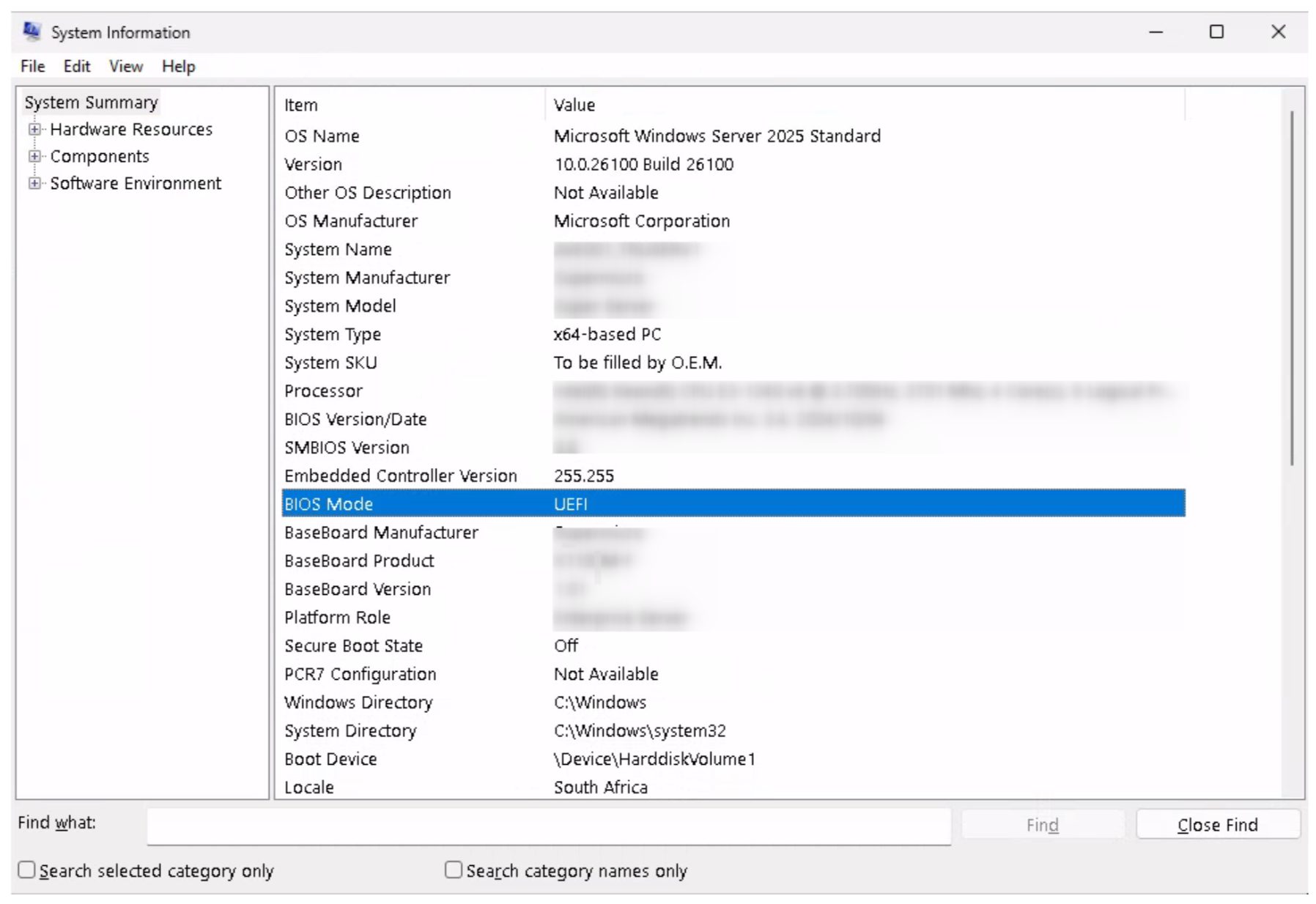
      Using System Information (msinfo32)

      Press Win + R, type msinfo32, and press Enter.

      In the System Information window, under System Summary, find the field called BIOS Mode.

      Check the value next to BIOS Mode:

      • If it says UEFI, your system is using UEFI BIOS mode.
      • If it says Legacy, your system is using Legacy BIOS mode.
      Replacing a failed disk in a mirrored setup:

      Please follow this Microsoft article